App Store · Official Download Guide
Shadowrocket DownloadPurchase & Verification
A paid app with a one-time purchase, available only on the App Store. Check the storefront region and verify the three product details before buying.
- Developer: Shadow Launch Technology Limited
- App ID: 932747118
- $2.99 one-time purchase
- For iPhone and iPad
US price shown for reference. Check the App Store listing for current pricing, Universal Purchase availability, and system requirements.
Storefront and account region
This app is not available in the mainland China storefront. If a search for Shadowrocket returns no results, check the region of the account you use for the App Store instead of repeatedly changing your search terms. Your Apple ID country or region determines which storefront you see and which purchase options are available. Your device’s display language, your current location, and your storefront region are separate settings; changing the system language to English will not change your account’s storefront.
The main button on this page links to Shadowrocket’s US App Store product page. When you open it, the App Store handles the purchase according to the account currently signed in. Seeing the listing in a browser does not guarantee that the account can complete a transaction in that storefront. Check any region or account messages from the system, then review your account status. The entire purchase and installation process takes place in the App Store.
Check your region before deciding whether to change it
- Open Settings on your device and tap the Apple ID account section at the top.
- Go to Media & Purchases, select View Account, and complete any authentication requested by the system.
- Open Country/Region to see your current region. If you need to change it, use the region-change option provided there.
- Read the on-screen instructions and check your payment details, billing address, and account status before deciding whether to continue.
The path is: Settings → Apple ID → Media & Purchases → View Account → Country/Region. Account section labels may vary slightly between system versions; follow what appears on your device. Existing subscriptions, account balance, or Family Sharing status may affect the process. Whether you can complete a change depends on Apple’s current requirements and the result shown by Apple.
Before you buy
Developer, icon, and app ID
Check each detail carefully for apps with identical or similar names. The name in search results alone is not enough to confirm the app.
Shadowrocket
Shadow Launch Technology Limited
932747118
Check all three details together
First, check the full developer name: Shadow Launch Technology Limited. Open the product details and verify the name exactly under Developer or Provider. Don’t rely on the shortened name shown on a search result card. If app names look alike, the developer information can help distinguish them. If it doesn’t match, stop and verify that you’re viewing the right listing.
Second, check the official icon: a blue-and-purple outlined rocket on a white background, matching the icon shown here. Use it as a quick visual cue, but remember that similar artwork can be confusing. Also verify the developer and app ID. Review the icon, app name, and screenshots together rather than relying on just one detail before purchasing.
Third, check the app ID: 932747118. The product page linked from the button on this page ends in id932747118. The app ID identifies the specific product in the store, even if search results change order. Once verified, review the price button, compatibility section, and purchase prompts separately to confirm both the product identity and purchase conditions.
Screenshots help identify the interface, not verify the app
The two images alongside this text are official English interface screenshots uploaded by the developer to the App Store. Home shows the connection toggle, Global Routing, Connectivity Test, and the SERVER section. Add Server shows fields for entering server details manually. These screenshots are for display only; purchasing the app does not provide connection resources, and the parameters shown should not be treated as usable settings for your own setup.
The interface may look different depending on your system, device, or app updates. To confirm that you have the right app, rely on the developer name, official icon, and app ID on the store listing. To follow the interface, use the English labels Home, Add Server, and Config. This page does not refer to a specific version. See the App Store product page for current feature details and release notes.
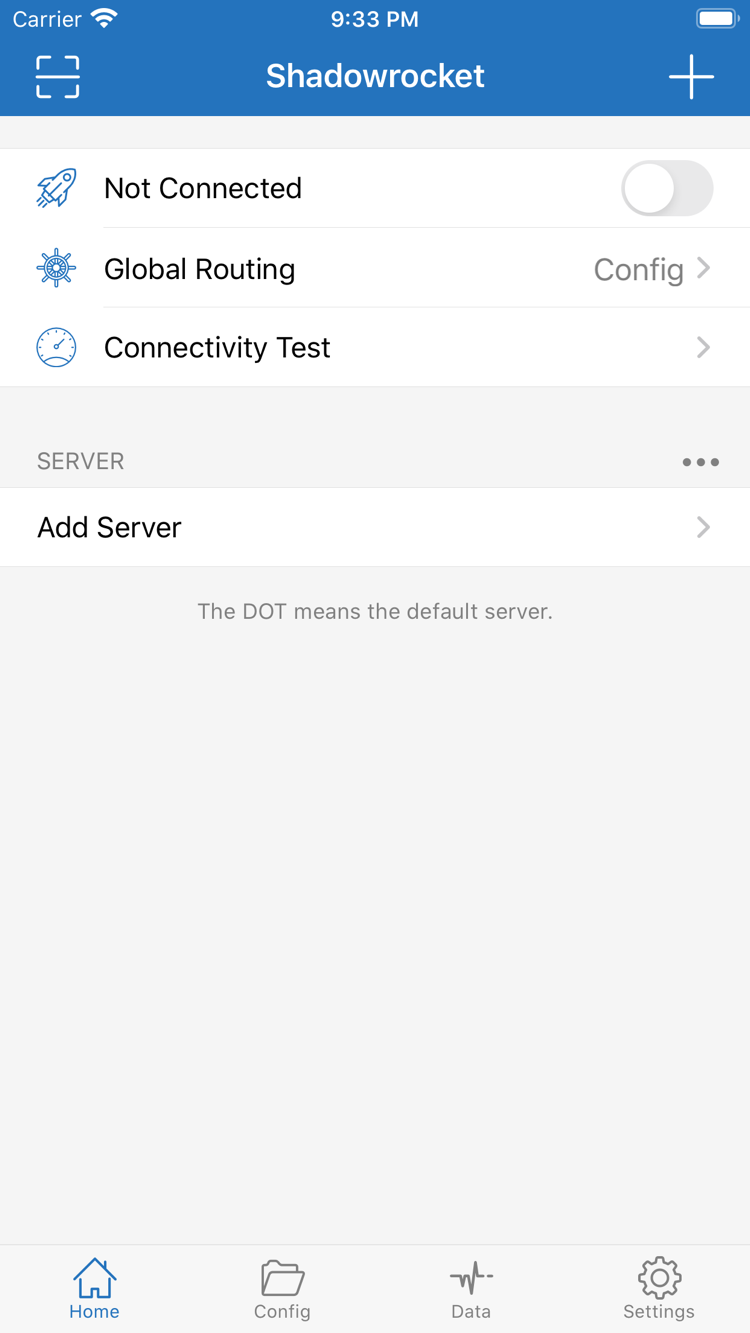
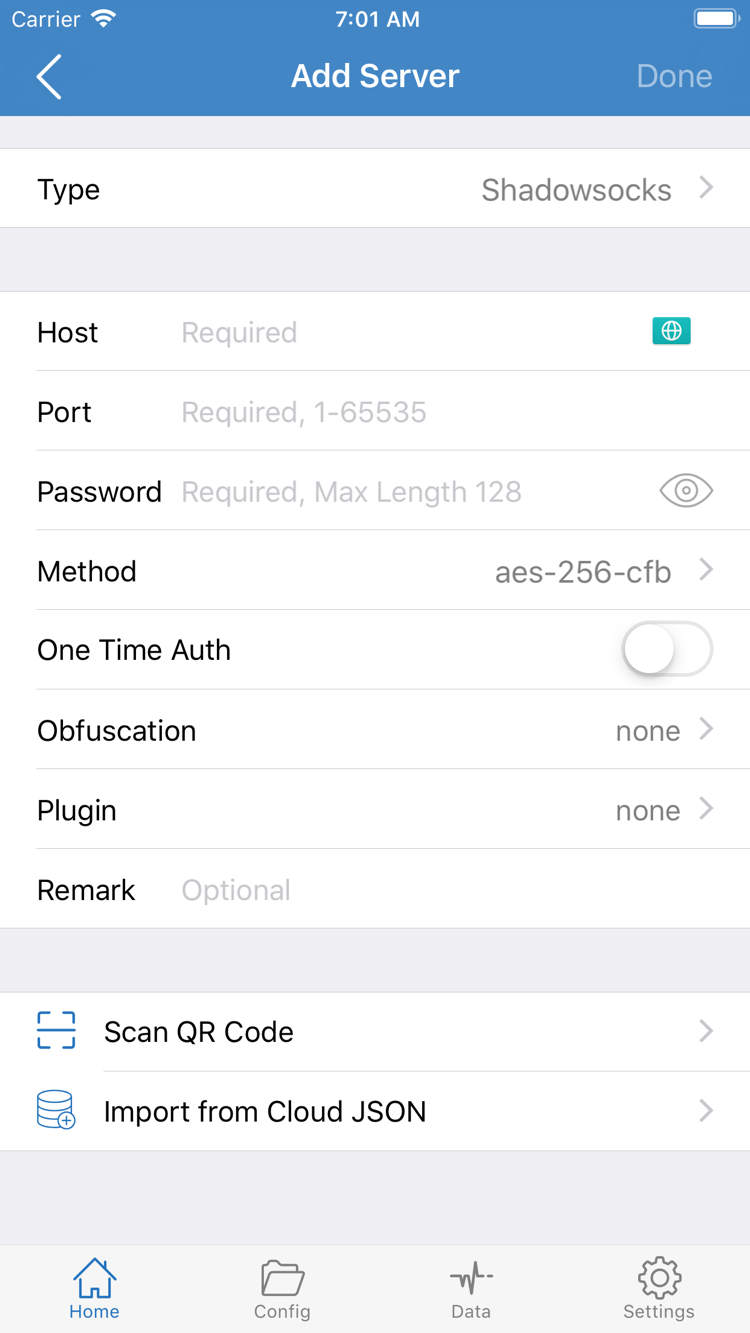
iPhone
Purchase, install, and open the app for the first time
On iPhone, open the App Store product page linked here, verify the three product details, then check compatibility and price. Refer to the App Store listing for system requirements. If the page says your device isn’t compatible, read the specific message; being able to view the listing in a browser does not mean your device meets the installation requirements.
- Verify the product name, developer, and app ID, and check the account used for Media & Purchases.
- Check the price in your local currency and complete the purchase using the App Store confirmation flow.
- Wait for the installation to finish, then open Shadowrocket from the Home Screen or tap Open on the App Store page.
- Have your own subscription or server details ready. Import your configuration, then select an item and connection method.
On the first visit to Home, an empty server list or no imported items means setup is still needed. Buying the app gives you access to the client; connecting requires service configuration you already have. Get subscription and server details from your service provider. Before entering them, check that the information is complete and distinguish a single server’s details from a subscription URL so you don’t put the wrong type of information in a field.
System authorization for your first connection
When you first start a connection, the system may ask for permission to add a VPN configuration. This system prompt allows the app to create the relevant network configuration; it is not another purchase. Confirm that the prompt appeared after you initiated an action in Shadowrocket, read the message, then authenticate as requested by your device. If you cancel, return to the app and start the connection again when you’re ready.
Authorization and service availability are separate steps. System approval of the configuration doesn’t mean the server address, port, or authentication details are correct. Return to Home, confirm that you selected the intended item, check Global Routing, and test actual access. If the switch turns on but access fails, check your settings, network, and rules rather than purchasing the app again.
To find your purchase after buying, check Purchased or your purchase history in the App Store account section. For the import sequence after installation, the difference between Config, Proxy, and Direct in Global Routing, and how to test a connection, see the Shadowrocket User Guide. This page covers purchase and installation; continue with the guide for configuration steps.
iPad
Purchase history across devices
If you bought Shadowrocket on iPhone, you can use the purchase history for the same Apple ID to get the app on iPad. You don’t need to start a new purchase just because you’re using a different device. Before you begin, make sure the iPad’s Media & Purchases account matches the one used for the original purchase. Check the App Store listing for Universal Purchase availability and system requirements.
Open the App Store on your iPad, go to Purchased in your account, and search for Shadowrocket to find the redownload option. If the product page still shows a price, check the account, purchase history, and current storefront region before proceeding. Keep family members’ purchase histories separate from your own; check the App Store listing to see whether Family Sharing applies.
The larger iPad screen may display lists, detail areas, and portrait or landscape layouts differently, but Home, Add Server, and Config remain the key interface labels to follow. Don’t judge a step by whether a button appears on the left or right; find the corresponding page name and check what each field means. You’ll also need to handle connection authorization and select items on the iPad itself.
After installing on another device, check whether a usable configuration is already there before importing anything. Restoring the app through your purchase history restores your access to the app; it doesn’t guarantee that your subscription, server details, or rules are in place. If you need to import them again, use information you’ve saved. Get any missing subscription or server details from your service provider, and check that your service supports the device.
Purchased
How to restore after changing devices or reinstalling
If you’ve changed devices or deleted the app and need to reinstall it, start by finding the original purchase. Sign in with the Apple ID used to buy Shadowrocket, then look under App Store → Account → Purchased. You can usually download it again without paying. On some system versions, this section may appear under Apps or a similar label; follow the account screen shown on your device.
- On the new device, check that the Apple ID used for Media & Purchases matches the original purchase account.
- Open the App Store account section, go to Purchased, and search for Shadowrocket.
- Verify the developer and app ID, then restore the app using the redownload option in Purchased.
- After opening the app, check what’s already there, import your own subscription or server details, and complete connection authorization on the device.
If a price appears, check your purchase history first
If you remember buying the app but still see a price, don’t assume you have to pay again. First check which account holds the original purchase, then verify the current storefront region and order status. A purchase reversal, refund, or other account change may also affect what you see. If the purchase history doesn’t match the screen, use the account and purchase history options in the App Store and follow the system prompts. Avoid confirming another payment while the status is unclear.
Check app redownload and service configuration separately. Once installation is complete, check that your items appear in Home, then see which configuration file is selected in Config. Don’t assume settings saved on another device will reappear when you restore the app from your purchase history. If you need to enter them again, use your own saved details and check the address, port, authentication information, and protocol type.
Before changing devices, organize the subscriptions, server details, and configuration file sources you still use, and make sure you can access them on the new device. Store authentication details securely, and avoid showing sensitive information in screenshots or when asking for help. After importing on the new device, check Global Routing and test actual access. This helps separate account recovery issues from connection configuration issues.
App updates are also handled through the App Store. You can enable automatic updates in your device settings or check for available updates in your account section. If the layout or settings change after an update, read the product page release notes and review your current configuration. Restoring a purchase, updating the app, and renewing a service provider subscription are separate processes.
Price & availability
What a one-time purchase covers
Shadowrocket is a paid client with a one-time purchase; there’s no monthly fee to buy the app. The US reference price is $2.99; other storefronts show local currency. Check the App Store listing for current pricing and purchase availability. Review the displayed price and account prompts before confirming; the reference price on this page does not replace the live store price.
Keep three things distinct: the app purchase in the App Store, the connection configuration on your device, and the service status provided by your provider. The app purchase is associated with your Apple ID’s purchase history. The configuration file determines how requests match rules and which policies apply. Server and subscription details determine the connection destination and authentication requirements. Buying the app does not set up the other two for you.
If the server list is empty when you first open the app, import your own details. If items are already there but the connection fails, check the settings, network, and service status. In either case, paying for the app alone doesn’t guarantee a successful connection. Likewise, a subscription renewal or change to your service period doesn’t alter the meaning of your existing App Store purchase.
If a payment remains pending, check the App Store message and purchase history first. Determine whether the transaction completed, the app is still downloading, or the device meets compatibility requirements before taking the next step. If the transaction result isn’t confirmed on screen, resolve the current status before trying again. Reinstalling may fix some local app issues, but it won’t resolve storefront, payment, or service configuration questions.
This is the official Shadowrocket website and manual. This page follows a practical order: verify the product, check purchase conditions, then complete configuration. Refer to the App Store listing for purchase details. For importing and connecting, see the User Guide. For rule matching and the FINAL fallback, see the Configuration Reference.
Purchase FAQs
Search, installation, and restore issues
Use the App Store prompt to identify which step is causing the issue, then check the relevant details.
Why can’t I find Shadowrocket on the App Store?
This app is not available in the mainland China storefront. Your Apple ID’s country or region determines which store content you can see. First, check your account region under Settings → Apple ID → Media & Purchases → View Account → Country/Region, then open the product page linked here. Whether you can change regions depends on your account status and Apple’s requirements.
What if the product page opens, but I can’t complete the purchase or download?
Use the App Store prompt to identify whether the issue concerns your region, payment, device compatibility, or a pending download. Check the account used for Media & Purchases, payment details, available device storage, and network connection, then review the product page’s compatibility information. Refer to the App Store listing for system requirements. If your purchase status is unclear, check your purchases and purchase history first.
Do I have to pay again when I get a new iPhone or reinstall the app?
Sign in with the Apple ID used for the original purchase, then find Shadowrocket under App Store → Account → Purchased. You can usually download it again without paying. After reinstalling, you’ll still need to import your own subscription or server details. If a price appears, check the purchase account and history first.
Can I install Shadowrocket on my iPad if I bought it with the same Apple ID?
You can use the same Apple ID purchase history to get Shadowrocket on iPhone and iPad. On your iPad, check the account used for Media & Purchases in the App Store, then look under Purchased. Check the App Store listing for availability through Universal Purchase and system requirements. After installation, review the configuration on the device.
Can I use the same App Store listing on Mac, Apple TV, and Apple Vision?
The compatibility section of the same App Store product page lists Mac, Apple TV, and Apple Vision. Check the product page on the relevant device. Availability through Universal Purchase, device compatibility, and system requirements are determined by the App Store listing.
The app interface is in English. How do I follow the instructions?
Use the official screenshots on this page to identify Home and Add Server. This manual keeps interface labels in English: Home shows servers and connection status, Add Server is for entering server details, Config manages configuration files, and Global Routing lets you choose Config, Proxy, or Direct. See the user guide for detailed steps.